Overview
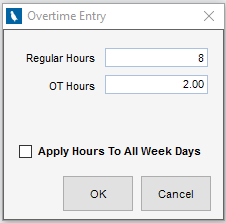
Overtime is designated as a part of the total time entered on a given project/day. For example, if you worked 10 hours on a given project and 2 of the hours were considered Overtime, you would enter the 10 hours in the timesheet grid and then designate the break out via the Regular and Overtime boxes below the timesheet grid or via the Overtime Entry dialogue, launched by typing “o” from the timesheet grid. Saving the entry publishes the breakout: 8 hours on the day and 2 hours to the Overtime column for the week.
Global Settings
To enable Overtime entry in Timesheets, check Allow Users to Edit Timesheet: Overtime via Administration>Global Settings>Time and Expense tab.
Tutorial
Overtime is added to a highlighted cell in the timesheet grid and there are two methods:
Keyboard Shortcut
| 1. | Type "O" from the highlighted cell. The Overtime Entry dialogue will launch |
| 2. | Specify the breakout of Regular and Overtime hours for the entry |
| 3. | If your hours should apply to all week days on the specified row, check Apply Hours to All Weekdays |
| 4. | Click OK |
| 5. | Click Save |
Regular/Overtime Fields
| 1. | Enter the breakout of Regular and Overtime hours for the entry in the fields below the timesheet grid |
| 2. | If your hours should apply to all week days on the specified row, check Apply Hours to All Weekdays |
| 3. | Click Save |